

To create an outstanding website, prioritize mobile responsiveness and user friendly navigation, use high quality visuals and consistent branding, and ensure your content is readable, compelling, and tied to a clear purpose. Use white space generously to improve readability, implement strong calls to action, and keep the overall feel clean, uncluttered, and minimalist. That is the short version. The honest version, I think, is that great sites feel calm. You land, you instantly know where to look, and nothing fights for your attention without earning it. This guide leans into that, with practical steps, small opinions, and a few gentle contradictions, because real design work is rarely perfectly tidy.
Before we dive in, a quick note on how to use this guide. The structure follows the exact order from the “5 Web Design Tips for an Outstanding Site” framework, so you can scan, implement, and move on. I will also call out micro tips that are easy to miss, like when to remove a homepage section or why your above the fold headline benefits from a deliberate verb. If you need hands on help with planning or execution, you can review how our team approaches web builds here, it shows the process clearly, 2Marketing web design services.
2. Design with visual hierarchy in mind
If minimalism is about restraint, hierarchy is about guidance. It is the way you direct the eye without saying a word. A page with strong hierarchy feels natural to read. You barely notice you are being led, but you are.
The first step is to define what matters most. Usually it is your headline, then the supporting message, then the action button. After that, sections should cascade from most to least important. If everything shouts, nothing stands out. So the trick is to let some things whisper so that others can sing.
Font size and weight are your first tools. A large bold headline creates instant contrast with a lighter paragraph. Color is another, though I think it is often overused. One accent color, reserved for CTAs, can be more powerful than a rainbow of competing hues. Spacing helps too. A wide margin around a block signals that it is important enough to stand on its own.
Consider the natural F-shaped or Z-shaped scanning patterns most visitors use. Place key elements where the eye tends to land. For example, a headline at top left, a strong image center right, and a call to action just below that diagonal path. It is not a rule, more of a tendency, but worth testing.
Imagery should support hierarchy, not distract from it. A hero photo should frame the copy, not compete with it. Icons can help chunk information, but too many can create visual noise. Even typography choices signal hierarchy. A sans serif headline paired with a serif body font can feel both modern and readable.
Quick checks you can try:
- Test your page blurred out at 50 percent opacity. Do the main elements still stand out?
- Use only two or three text sizes site wide.
- Keep one button style for all CTAs, and avoid using it for anything that is not actionable.
3. Create easy to read website content
Design attracts the first glance, but words hold attention. If the copy is heavy, dense, or full of filler, people leave. It does not matter how stunning the layout looks. So readability becomes as important as visuals.
Keep paragraphs short. Two to three sentences per block is usually enough. Long walls of text, even with great information, discourage scanning. Break things up with subheadings, bullet points, and occasional pull quotes. You want the page to feel approachable, almost like a conversation, not a lecture.
Clarity over cleverness. A headline like “Solutions for Tomorrow” sounds inspiring, but it tells the visitor nothing. Compare that to “Affordable Web Design for Small Businesses.” It may sound plainer, but it communicates instantly. Once clarity is established, you can add creative flourishes in supporting text.
Think about rhythm. Mix long and short sentences. A quick line, then a longer one that develops an idea, then maybe another quick one to reset. This feels natural, like real speech. It also prevents monotony, something AI generated content often struggles with.
Formatting serves comprehension as much as looks. Use bold for key phrases, but sparingly. Italics can emphasize nuance or a softer point. Lists highlight comparisons, steps, or benefits clearly. Tables, which we will include later in this blog, help organize more complex details without overloading the reader.
Language tone matters too. Active voice usually reads cleaner than passive voice. For example, “Our team builds websites” lands stronger than “Websites are built by our team.” Yet, occasionally mixing in passive can soften tone when needed. Perfection is not the goal, readability is.
SEO best practices slot in here as well. Place your target keyword, Web Design Tips for an Outstanding Site, in one or two key headings and naturally in the copy. Do not force it. Use LSI phrases like “visual hierarchy,” “responsive layouts,” “mobile first design,” and “user friendly navigation” throughout. They help search engines understand context and improve your chances of ranking.
Practical micro checks:
- Test your content with the “read out loud” function on your computer or phone. If it sounds robotic, simplify.
- Keep sentences under 20 words when possible, but allow occasional longer ones for variety.
- Ensure line spacing is at least 1.5 for body text.
4. Ensure your site is easy to navigate
Good navigation feels invisible. You do not notice it, you just find what you came for. When people get lost, they bounce, and the best design in the world cannot recover that trust easily. I like to think of navigation as a store layout. Clear aisles, bright signs, no dead ends. Simple, and oddly rare.
Start with a short primary menu. Five to seven items, ordered by intent, not by internal politics. What a visitor needs first, goes first. Home, Services, Pricing, Work, About, Contact. If you run content heavy sites, add Blog or Resources, but keep everything else in the footer. Group sibling pages under clear mega menu labels only if you truly need them. Many sites do not.
Your logo should always link to the homepage. The active state in the menu should be obvious. Breadcrumbs help in deep content hierarchies, especially for blogs or knowledge bases. On mobile, sticky headers with a clean hamburger icon work well, but test that the icon is large enough to tap comfortably. I have watched recordings where people jab at a 24 px target and give up. Do not make them chase tiny icons.
Use descriptive labels. “Solutions” sounds grand, but “Web Design” or “SEO” tells the brain exactly what lives there. Same rule for buttons. “Get a Quote” beats “Learn More” nine times out of ten. If you do need secondary links, style them as text links to avoid competing with your main calls to action.
Search matters more than most teams expect. If you publish more than 50 pages, add site search and make the input easy to find. Autocomplete that suggests top pages or categories can shave seconds off a visit. On smaller sites, a well structured Resources page can be just as effective, perhaps even friendlier.
Footer navigation is your safety net. Include contact details, key links, legal items, a compact sitemap, and social proof. People scroll to the bottom when they are still deciding, so do not let the page just end. Offer a gentle next step. A short “Ready to plan your project? Talk to a strategist” with a single button works well. If you want an example of how we funnel visitors forward without pressure, you can see our approach here, 2Marketing contact page.
Consider the emotional side of navigation. New visitors feel cautious. Returning users move faster. Your interface should respect both. First timers need obvious signposts and reassurance. Repeat visitors want shortcuts. Add “sticky” utility links, for example “Get Pricing,” that stay visible as you scroll. Create a concise “shortcuts” bar on logged in experiences if your product allows it.
A few tiny, high use fixes:
- Set consistent hover and focus styles for links and buttons, this doubles as an accessibility improvement.
- Increase the space between menu items. Crowded navs feel cheap and are hard to scan.
- Limit dropdown depth. One level is usually enough. Two at most. Anything further belongs on a hub page.
Navigation patterns comparison
Navigation patterns comparison
| Pattern | Best for | Pros | Cons | Notes |
|---|---|---|---|---|
| Simple top bar | Small to mid sites | Fast to scan, minimal cognitive load | Limited room for subpages | Keep 5 to 7 items |
| Mega menu | Large catalogs or universities | Surfaces depth without extra clicks | Can feel heavy on mobile | Use clear section labels |
| Sidebar navigation | Docs, blogs, help centers | Persistent context, easy breadcrumbs | Consumes horizontal space | Collapse on mobile |
| Bottom tab bar | Mobile heavy apps | One hand reach, large tap targets | Not great for desktop | Use 4 to 5 tabs max |
If you want help mapping your information architecture, we often start with a one hour discovery that sorts user intents into a tidy tree, and then we prototype the menu quickly to test assumptions, see 2Marketing site planning.
5. Stay mobile friendly
Most visitors arrive on a phone first, sometimes only. If a site looks cramped or slow on a small screen, people shrug and move on. The fixes are not mysterious, but they require care. I like to test early on a cheap Android and an older iPhone as well as the newest device. If it works there, it usually works everywhere.
Start with a responsive grid. Use fluid containers that scale from 320 px to 1440 px and beyond. Define breakpoints with intent, not by guesswork. A practical trio is 480, 768, and 1024. Map each breakpoint to clear layout shifts. For example, three feature cards in a row on desktop become two on tablets, then a single stacked list on phones. Keep gutters generous so tap targets do not collide.
Optimize the hero for mobile. Large background videos often stutter over cellular. Replace them with a lightweight image or a short loop under 1 MB. Keep the headline to two lines on a narrow viewport. The primary CTA should appear above the fold, or very close to it, with at least 44 by 44 px tap area. If someone has to pinch zoom to click, conversion drops. It seems obvious, yet I still see it.
Typography needs its own mobile rules. Body copy at 16 to 18 px with 1.6 line height is a safe baseline. Headlines can scale using clamp in CSS so they do not overwhelm small screens. Avoid thin font weights. They fade on low contrast displays. Also, limit the number of font files. Two families with two weights each is usually enough. Every additional file delays first paint.
Navigation on mobile should be tidy and predictable. A sticky header with a clear menu icon, brand mark, and one utility CTA works well. Keep dropdowns shallow. Accordions help with secondary links and FAQs. Do not forget focus states for keyboard and screen reader users. Mobile accessibility deserves its own plan instead of a desktop checklist squeezed down. It is its own experience.
Performance is part of mobile friendliness. Serve next gen images like WebP where supported, but provide fallbacks. Lazy load below the fold assets. Inline critical CSS for the above the fold area, then defer the rest. Limit third party scripts. A single chat widget or heavy analytics tag can add seconds. I sometimes turn features off for a week to measure the real impact. You might be surprised by how little you lose, and how much speed you gain.
Form design deserves special attention. Replace long forms with multi step flows. Auto detect country codes. Use input types that trigger the right mobile keyboard, for example email, tel, number. Provide clear error messages near the field, not at the top of the page. If you support autofill, completion rates climb. If you block it, rates fall. Simple as that.
Testing is not a one time task. Check real devices as well as emulators. Watch a few session replays. Where do thumbs hover, where do people hesitate. If a user hesitates twice on the same element, your layout is thinking out loud. That is data you can act on.
Micro checklist for mobile readiness
- Use a flexible grid with thoughtful breakpoints.
- Keep hero assets light and CTAs tap friendly.
- Set legible font sizes, avoid ultra thin weights.
- Simplify menus, add clear focus and active states.
- Optimize images and defer non critical scripts.
- Design forms for thumbs, not mice.
Implementation notes, schema, and on page SEO essentials
We have the five design tips in place, so here is how I would hard wire them for visibility in search. Not a new tip, more like the plumbing behind what users see. It is practical, sometimes boring, and oddly powerful.
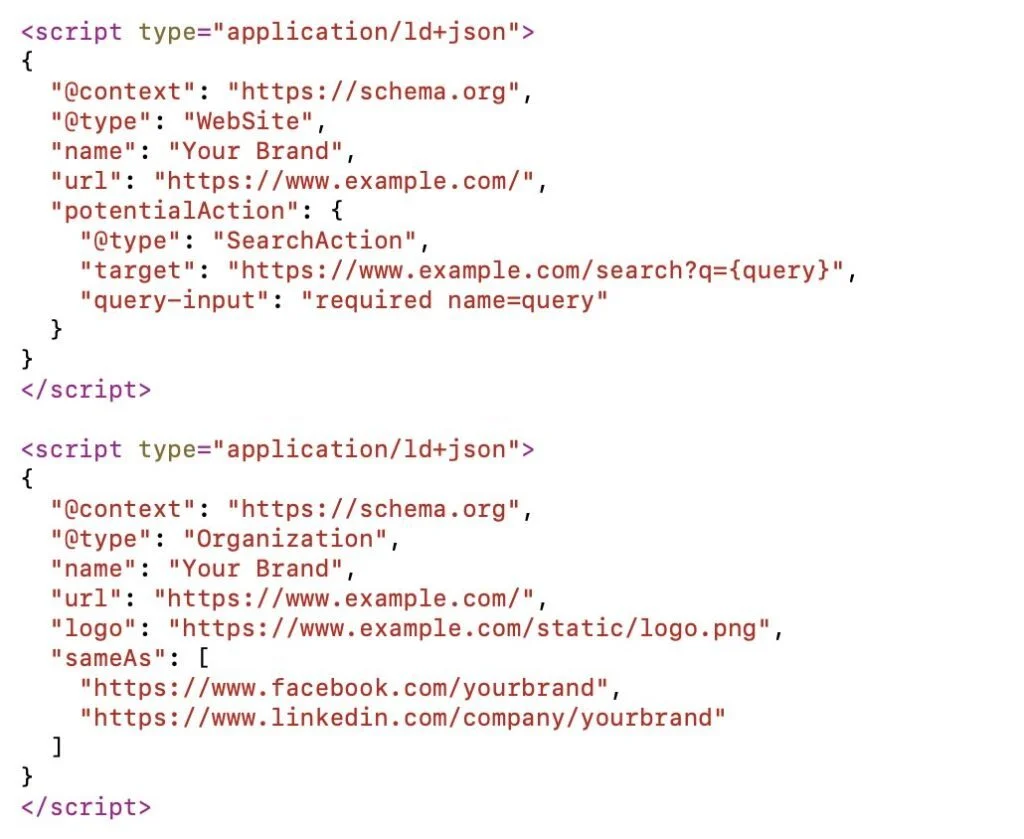
Schema markup to support clarity and sitelinks
Start with three JSON LD blocks. Keep them small and honest. Search engines reward completeness and consistency.
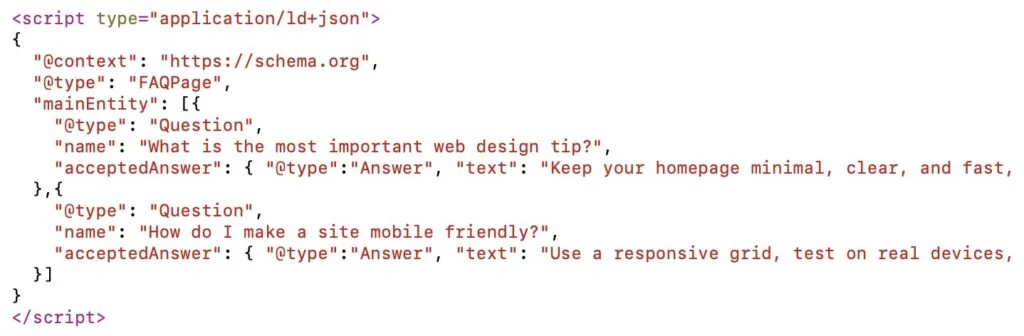
If you publish this as a long form guide, consider a short FAQ at the bottom. Two or three questions is enough. It can earn a small rich result without turning the page into a wall of Q and A.
On page structure that supports both users and crawlers
Map each of the five tips to an H2, and keep supporting ideas inside H3s. One target keyword in the H1, Web Design Tips for an Outstanding Site, one mention high in the introduction, and a few natural mentions across the page. Sprinkle LSI terms where they make sense, for example visual hierarchy, minimalist homepage, mobile first layout, user friendly navigation, responsive typography, call to action design, accessibility best practices. No stuffing. If a sentence feels forced, cut it.
Image hygiene matters. Use descriptive filenames like minimal-homepage-wireframe.png and mobile-hero-example.webp. Add concise alt text, no more than one short sentence. Deliver WebP with PNG or JPEG fallback. Lazy load anything below the fold.
Internal links, three or four across the entire guide, help both discovery and conversion. We already pointed to two resources. Here are two more you can use sparingly where relevant in the copy, 2Marketing SEO services, and a soft, helpful link to the planning stage, discovery process. Keep anchor text descriptive and human.
Quick comparison table, mobile speed levers
You can drop this near the mobile section to show tradeoffs at a glance.
| Technique | Speed impact | Effort | Notes |
|---|---|---|---|
| Compress and serve WebP | High | Low | Keep hero under 1 MB |
| Inline critical CSS | High | Medium | Defer the rest |
| Script audit, remove third parties | High | Medium | Measure before and after |
| Font subsetting and preloading | Medium | Medium | Limit to two families |
Closing thought
Outstanding web design is not about novelty. It is about clarity, respect for the visitor’s time, and small details that stack into trust. The design is not finished when you add the last thing, it is finished when you remove the last unnecessary thing. Then, you measure, adjust, and repeat.