
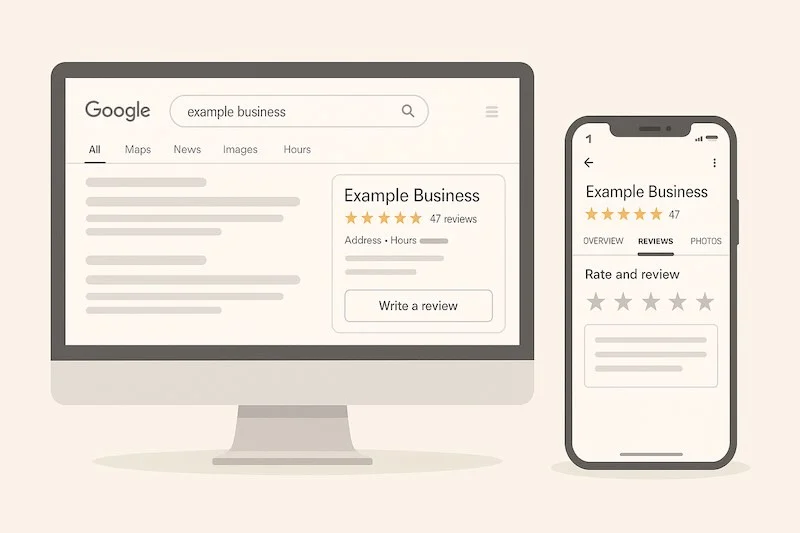
To leave a Google review, sign into your Google account, search for the business on Google Search or Google Maps, find its profile, and click the “Write a review” button. Then, choose a star rating, write what happened in your own words, optionally add photos, and click “Post.” That is the skeleton. Real life adds a few tiny wrinkles, I think, like being signed in on the right account, or noticing that the button sits in a slightly different place on desktop compared to mobile. This guide keeps the simple structure, but adds the small clarifications people ask for, so it feels natural and actually helpful.
Before we get practical, one quick note. Reviews help real people make decisions. They also help local businesses show up for the right searches. If you run a business and want more of the right reviews with less hassle, you might skim 2Marketing’s resources on Local SEO and SEO services and even their web design tips to clean up your profile and site. I mention that because the technical setup behind the scenes often changes how easy it is for customers to leave reviews.
Using a computer
I will walk through the familiar flow first, slowly, then a little faster. You can jump to the quick checklist if you prefer.
Step by step
- Sign in to your Google account Open any Google page. Look at the top right. If you see your profile photo, you are already signed in. If not, click Sign in and use the account you want your review attached to. Small tip, if you manage multiple Gmail accounts, double check the avatar. It avoids posting from the wrong one.
- Search for the business You can use either Google Search or Google Maps.
- On Google Search, type the business name and city, for example, “2Marketing Toronto.”
- On Google Maps from your browser, go to maps.google.com and search the same way. Perhaps add a keyword like “dentist” or “coffee” if the name is common.
- Open the business profile On Google Search, the profile typically appears on the right side. On Google Maps, it shows up in the left panel. If there are multiple branches or similar names, pick the exact one you visited. I have clicked the wrong branch before, and fixing that later is not fun.
- Click “Write a review” On Search, look for a row of stars under the business name. On Maps, scroll a little in the left panel until you see Reviews. Click Write a review or click the stars themselves to open the review box.
- Give a star rating and write what happened Select 1 to 5 stars. Then write your review. Honest, specific, and short usually wins. Mention what you did, who helped you, and one detail that would matter to another customer. If appropriate, click the photo icon and add a picture, receipts or menus or the final result can make a review more useful.
- Click “Post” Your review publishes to your profile. You can still edit or delete it later.
Quick checklist for desktop
- Signed in
- Exact location chosen
- Click Write a review
- Stars, a few clear sentences, optional photos
- Post
A realistic example
“Booked a same day repair after a late noise from the garage door, technician arrived within the window, explained the spring issue in plain language, and cleaned up after. Price matched the quote. I wish the payment link had Apple Pay, but card worked. Would use again.”
Using the Google Maps app
If you are on your phone, this is the smoother path. I find it faster, especially if you just left the shop and still have the receipt or a quick photo in your gallery.
- Open the Google Maps app If you are not signed in, tap your profile icon, sign in with the right account.
- Search and open the profile Type the business name, then tap the correct result. If you visited recently, you may even see it under Go or Recents.
- Tap the Reviews tab At the top, swipe to Reviews.
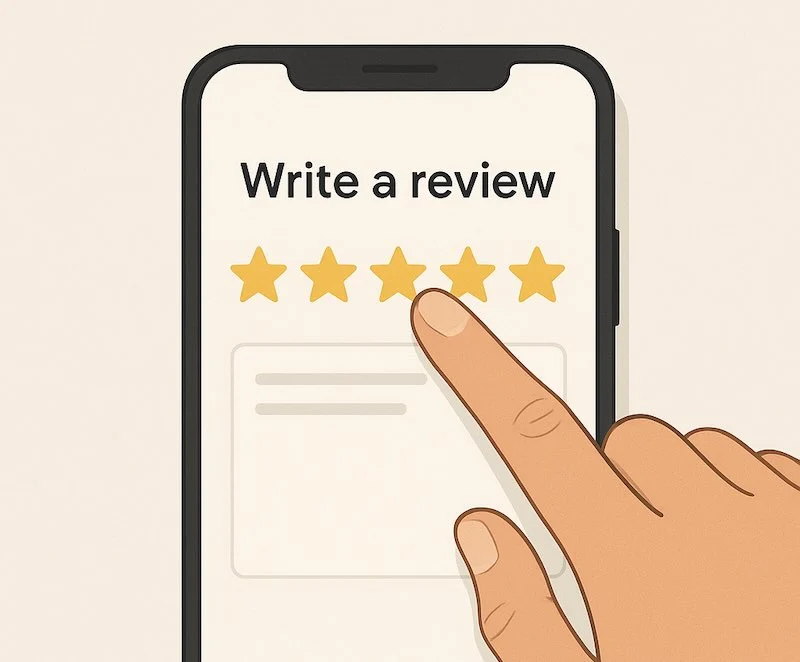
- Tap the stars under “Rate and review” This opens the box to rate and type.
- Write and add photos Keep it specific. If you just took a picture of the product, room, or result, attach it now.
- Tap “Post” Done.
Small mobile tips
- If the app asks for location permission, allow it. Maps can suggest places you actually visited, which helps avoid reviewing the wrong branch.
- If you cannot find the Write a review button, scroll a little. On some screens it sits just below the rating summary.
Why your review might not show up immediately
Sometimes reviews enter a short review filter. This is normal. Things that help, use your own words, avoid a flood of identical reviews from the same Wi Fi or device cluster, and avoid links or promo language. If your review was genuine and follows Google’s policies, it often appears within a short time.
What makes a helpful review, the short recipe
- One clear outcome, what you got and whether it matched expectations
- One or two specifics, a staff name, time window, or product detail
- One small constructive note if relevant
- Photos when you can, before and after works great for services
| Step | Desktop, Google Search or Maps | Mobile, Google Maps app |
|---|---|---|
| Sign in | Click profile in top right, confirm correct account | Tap profile icon, switch accounts if needed |
| Find business | Search name plus city, open profile on right or in Maps left panel | Search name, tap profile, or pick from Recents |
| Open reviews | Click “Write a review” or click the star row | Open the Reviews tab, tap the stars under “Rate and review” |
| Write and rate | Choose stars, write a few specific lines, add photos | Choose stars, type naturally, attach photos from gallery |
| Post | Click “Post” | Tap “Post” |
| Editing later | Go to your profile, **Reviews**, edit or delete | Profile in Maps, **Your profile**, then **Reviews** |
Tiny troubleshooting checklist
- I cannot see “Write a review” Try scrolling. On Search, it sits near the rating summary. On Maps, open the Reviews tab. If the profile is new, the button may not appear until the listing is verified.
- My review did not publish Give it a little time. Remove links, coupons, or phone numbers. Keep it personal, not promotional.
- I posted from the wrong account Delete the review from that account, sign out, sign back in with the right one, post again.
- I want to share a quick link for customers Create a short link to your review form using the Place ID from your Google Business Profile. If you need a simple walkthrough, 2Marketing’s team can set this up while reviewing your Local SEO basics.
Review etiquette, little things that make a big difference
This is not a rule book, just what tends to help other people.
- Be specific, not dramatic. Instead of “terrible,” try “appointment started 25 minutes late, no explanation.”
- Describe one moment that mattered. A clear explanation from a staff member, a price that matched the quote, a quick fix after a slip, these details travel well.
- Avoid personal info. Skip last names, phone numbers, or private medical details.
- Keep photos relevant. A tidy workspace, a finished result, a menu for context.
- Be fair with timing. If you are angry, take a quick breath, write facts first, opinions later. I sometimes save a draft, then come back after lunch.
- Mention accessibility if you can. Entrance step count, elevator location, large print menus, this helps more people than you think.
How to ask customers for Google reviews without sounding pushy
I will keep it practical. Pick one script, try it for a week, refine based on the response rate. A tiny adjustment to the ask can double results.
Scripts you can use
Face to face, right after service
“Thanks for coming in today. If everything felt good, a quick Google review helps people find us. You can scan this card and it opens the form.”
By SMS within 2 hours
“Hi Sam, thanks for choosing us today. If you have 30 seconds, could you share a quick Google review about your experience, it helps us grow. [Review link]”
By email the next morning
“Hi Priya, it was great to serve you yesterday. We aim to earn your five stars, and if something was not right, please reply so we can fix it. If you are happy, would you leave a short Google review, just one or two sentences is perfect. [Review link]”
Invoice footer
“Happy with our work, leave a quick Google review here, it really helps others decide. [Review link]”
QR code on a card
Place it at checkout, on a thank you sticker, or inside packaging. Keep the card simple, logo, “Review us on Google,” QR code.
| Problem | Likely cause | What to try |
|---|---|---|
| Cannot find Write a review | Profile view differs on device or listing not verified | Open the Reviews tab on Maps, scroll a little, verify listing in Google Business Profile |
| Review not showing | Temporary filter, flagged keywords, duplicate text | Remove links or promo codes, rewrite in your own words, wait a short time |
| Wrong branch reviewed | Common name, multiple locations | Delete the review, search again with city or street, repost to the correct profile |
| Photo will not upload | File too large or unstable connection | Compress the photo, switch to Wi Fi, post text first and add photo later |
| Posted from the wrong account | Multiple Google accounts active | Sign out, sign in with the right account, repost, consider using different browser profiles |
Building a direct Google review link for your business
A direct link reduces friction. People click, the review box opens. Fewer steps equals more reviews.
- Open your Google Business Profile in a browser, sign in with the owner or manager account.
- In the search bar, type your business name exactly, you should see the merchant panel appear.
- Click Ask for reviews, then Share review form, copy the link.
- Shorten the link if you want, most CRMs do this for you.
- Place the link in your email signature, on receipts, and on a simple “Thank you” page.
Responding to reviews, a short framework
Replies are public. They signal how you treat people when things go right and when they do not.
Positive review reply
“Thank you for the kind words, Jordan. We will pass your note to Maya. If you visit again, try the seasonal latte, it just returned.”
Neutral or mixed review reply
“Thanks for sharing this, and for pointing out the wait time. We are adjusting our afternoon staffing. If you are open to it, reply to our message so we can make this right.”
Negative review reply
“Thank you for the feedback, Sam. We are sorry your installation ran late. We have reviewed your order and can offer a partial refund and a service call to check the finish. Please email us at support@yourbrand, and we will resolve it.”
If your profile is not verified yet, our guide to Google Business Profile verification methods and fixes walks through the steps before you start collecting reviews. Once the profile is live, our Google Business Profile optimization checklist shows how to handle categories, photos and review replies.
Business owners who want the other side of this process can read our guide on how to get more Google reviews for your business, reply to them and report the ones that break the rules.
Light checklist for businesses, to increase review volume ethically
- Make the review link obvious on your site. A clean button in the header and a small link in the footer, both work.
- Ask at the right moment. Right after a solved problem, or when a customer expresses thanks.
- Train your team to ask, one sentence and a smile.
- Pick one channel for follow ups, SMS or email, and test timing.
- Respond to every review. Short thanks is fine, longer for issues.
- Track the keywords that show up in high rating reviews, then use them in your SEO copy, for example, “same day repair,” “friendly staff,” “clear pricing.”
| Channel | Best timing | Suggested script | Notes |
|---|---|---|---|
| In person | Immediately after service completion | “If everything felt good today, would you leave a quick Google review. You can scan this card.” | Use a small card with QR and short URL |
| SMS | Within 2 hours of visit | “Thank you for choosing us today. If you have 30 seconds, a short Google review helps others decide. [Review link]” | Keep under 160 characters |
| Next morning | “We appreciate the chance to serve you. If we earned it, would you leave a short Google review. If anything needs fixing, reply here and we will sort it out.” | Add signature link and footer link | |
| Invoice footer | At payment | “Happy with our work. Share a quick Google review. It helps others find us. [Review link]” | Good for B2B services |
| Thank you page | After online purchase | “Your order is confirmed. When it arrives, share a short Google review about delivery and product quality. [Review link]” | Add a reminder email 3 days after delivery |
Leaving a Google review is simple. Sign in, find the business on Google Search or Google Maps, open the profile, tap or click Write a review, choose your stars, write a few specific lines, and post. On desktop the button usually sits near the star row on the right panel. On mobile it lives under the Reviews tab in the Maps app. If a review does not show right away, remove links and keep it personal. If you manage a business, make it easy to leave a review with a direct link, a QR card, and a polite one touch follow up. Reply to everything. Track the words customers use in positive reviews and reflect them in your site copy with help from the 2Marketing SEO team. Small systems beat one off pushes.